
Use the AI assistant
The commonplot AI assistant answers from the resources and documents you choose, compares sources, and writes documents. Learn to add context, pick a model, and check citations.
The commonplot AI assistant answers from the material you give it and lists the sources it used. What matters most is not how long your prompt is but whether the right resources and documents are in its context.
Where to use it
The AI Chat page
AI Chat in the sidebar is a standalone chat, good for open-ended exploration such as catching up on today's news. The sidebar lists recent chats; choose + for a new one.
An empty chat offers preset tasks:
- Today's news briefing: today's essential news, ranked by impact
- Summarize key points: condense articles and documents
- Compare sources: find consensus and disagreement
- Create research document: draft a cited research brief
The AI rail in a notebook
In a notebook, the Chat tab of the AI rail can use that notebook's resources and documents directly. For reports or comparing several sources, work inside a notebook.
Add context
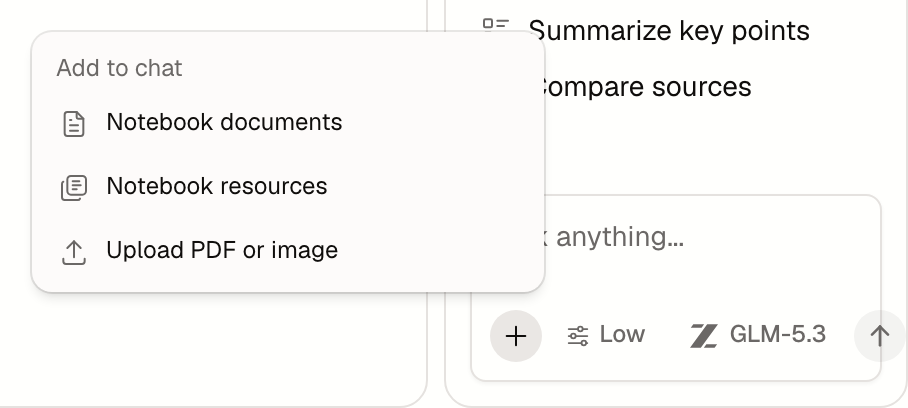
Choose Add context in the composer:
- Notebook resources: articles, papers, videos, and PDFs in this notebook
- Notebook documents: documents you or AI wrote
- Upload PDF or image: attach files directly (up to 5 per message, 10 MB each)
You can also select a passage while reading and quote it into the chat. Up to 20 context items fit in one message.
Before sending, check that:
- Every source you want compared is included.
- No unrelated old material slipped in.
- Newly added resources show Ready to read.
What the AI can do
Depending on your plan and question, the AI can:
- Search public commonplot content
- Check your saved resources
- Read the resources and documents in a notebook
- Search the web for recent information
- Ask you when a decision is yours to make
- Create documents in a notebook and edit existing ones
- Create audio overviews
- Generate images (Pro)
Each step appears in the answer, such as "Searching commonplot" or "Searching the web".
Citations and verification
The source count under an answer (such as 3 sources) lists what the AI used; items tagged In commonplot are commonplot content. A citation means the AI used that source, not that the source is correct.
For important research:
- Open citations to check the original.
- Ask the AI to separate facts, inferences, and uncertainties.
- Compare at least two independent sources.
- Check numbers, dates, and names yourself before publishing.
Choose a model and reasoning effort
Switch models in the composer's Model menu. The Free plan includes basic models; Pro adds advanced ones. Reasoning effort can be Default, Low, High, or Max. Higher effort suits harder questions but answers more slowly and uses more AI usage.
AI usage
AI chat, translation, and audio overviews draw on your monthly AI usage, shown as a percentage. When it runs out, new AI actions pause; reading and manual editing keep working. See Plans and AI usage.
More answer actions
You can copy, regenerate, or rate each answer. Tables in answers can be copied or downloaded as CSV, TSV, or Markdown.
Last updated on
Library and storage
Manage uploaded PDFs and images, generated audio, and chat attachments in the commonplot Library, and check storage usage and upload limits.
Write and publish documents
Write documents in a commonplot notebook, have AI draft and edit them, restore earlier versions, and share them by link or as a public page.