
Write and publish documents
Write documents in a commonplot notebook, have AI draft and edit them, restore earlier versions, and share them by link or as a public page.
Documents are what you produce in commonplot: research notes, reports, or articles. Every document belongs to a notebook. Write one from scratch, or have AI draft it from the notebook's sources.
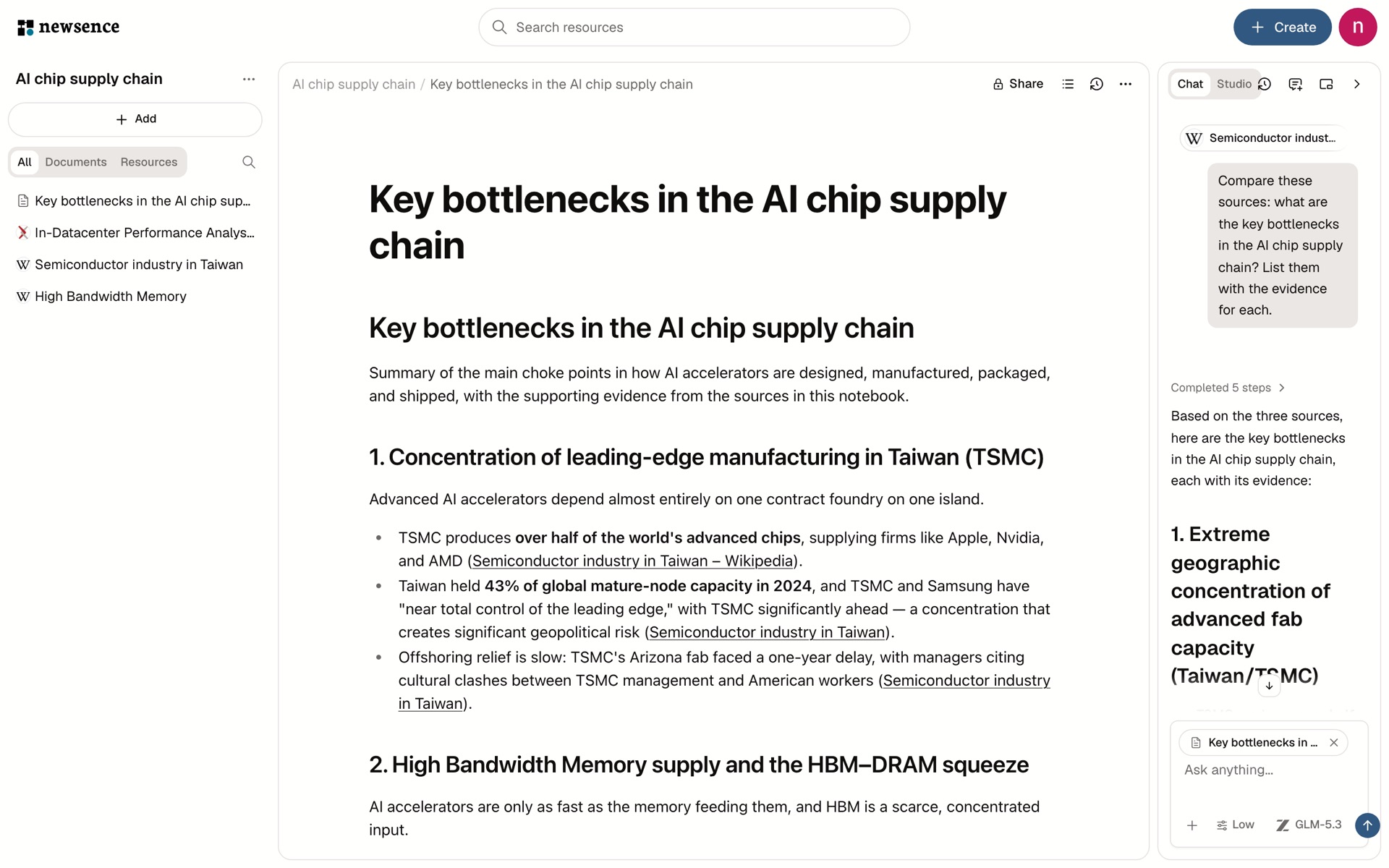
Create a document
- In the notebook's resources rail, choose Add → New document.
- Or ask in the AI rail, for example:
Using this notebook's resources, write a research brief with the main conclusions, disagreements, and citations.- Or in the Studio tab, choose Research document → Write document.
Edit
Type "/" for the command menu to insert:
- Headings (H1–H3), bulleted, numbered, and to-do lists
- Quotes, code blocks, and dividers
- Tables (merge cells, header row)
- Images (PNG, JPEG, GIF, WebP, HEIC, up to 10 MB)
Select text to make it bold, italic, underlined, struck through, inline code, or a link. The handle beside each block duplicates it, moves it up or down, or turns it into another block type. Outline lists every heading so you can jump between them.
Autosave
Documents save automatically, and the status next to the title shows states such as Saving… or Couldn't save. Changes made offline sync when you reconnect; keep the tab open until then.
Use Download a copy whenever you want a local file.
Edit with AI
When you ask in the AI rail, the AI can edit the open document, for example to:
- Rewrite a section
- Add a summary or conclusion
- Add new sections from the notebook's resources
- Make citations consistent
While AI edits, the document shows AI · Editing. A version is saved before every AI edit.
Version history
Open Version history from the document toolbar to see versions kept as you edit and the version before each AI edit. Choose one and select Restore this version to go back to it.
Share a document
Choose Share above the document and pick Who can read:
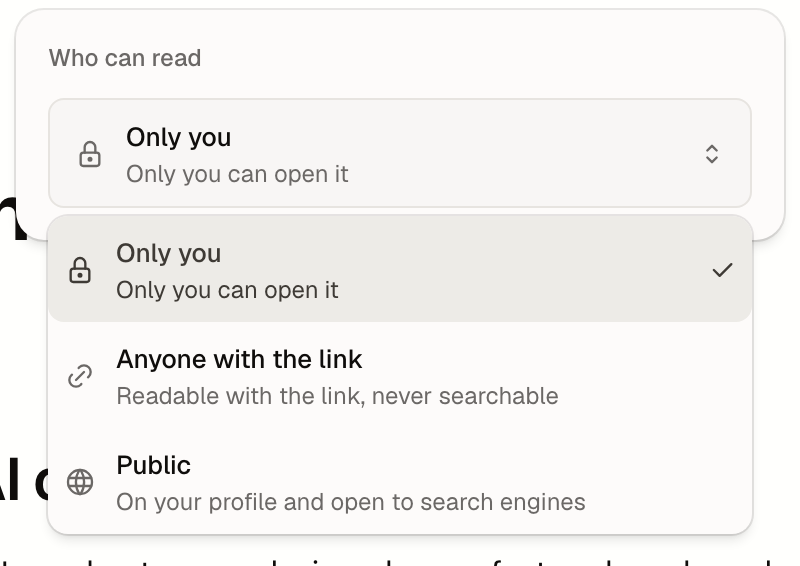
| Option | Who can see it |
|---|---|
| Only you | Only you can open it (the default) |
| Anyone with the link | Readable with the link, never searchable |
| Public | On your profile and open to search engines |
Set a username in Settings → Profile before sharing. A shared document's address is:
commonplot.co/{username}/{url-slug}You can set the URL, description, and document language. A published URL stays fixed so links already shared keep working.
Before publishing, a document needs at least 80 characters, a specific title, valid links and images, and its latest changes saved.
Delete a document
Deleting is permanent: it removes the document and its version history. To stop sharing, set Who can read back to Only you instead.
Last updated on
Use the AI assistant
The commonplot AI assistant answers from the resources and documents you choose, compares sources, and writes documents. Learn to add context, pick a model, and check citations.
Create an audio overview
Turn the articles, papers, and documents in a commonplot notebook into a two-host audio overview, with your choice of language, length, and focus.